
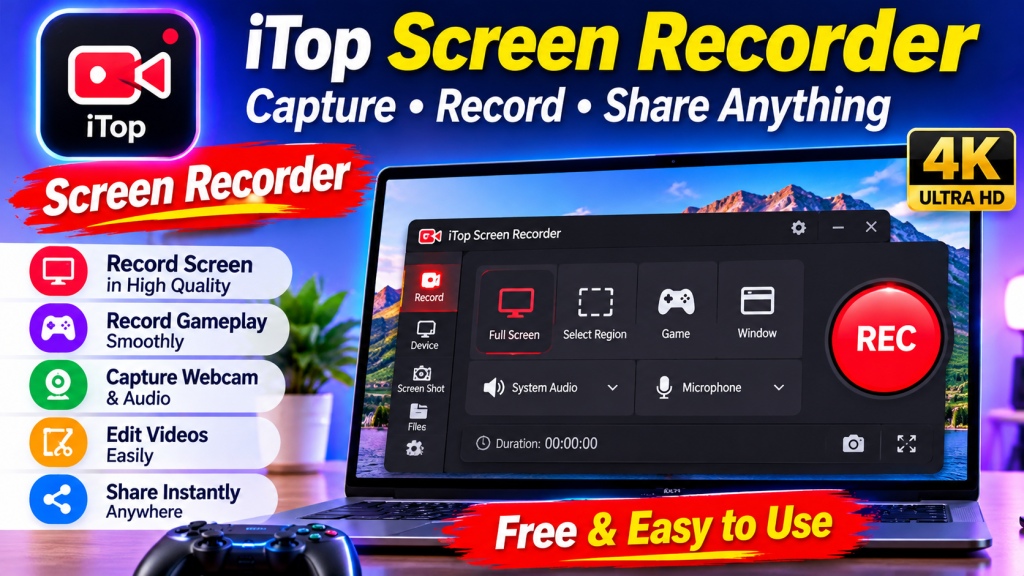

Screen recording has become an important part of everyday computer use. Whether you are creating tutorials, recording online meetings, capturing gameplay, or preparing presentations, having a reliable recording tool can make your work much easier. A good screen recorder should offer simple controls, clear video quality, and useful features without requiring complicated technical knowledge. One option worth exploring is iTop Screen Recorder, a tool designed to make screen capturing more convenient for Windows users.
What Is iTop Screen Recorder?
iTop Screen Recorder is a screen recording application that allows users to capture activities displayed on their computer screens. It can be useful for students, content creators, professionals, gamers, and anyone who needs to save on-screen information as a video.
Instead of relying on external cameras or complicated recording equipment, users can record directly from their desktops. Depending on their needs, they can capture tutorials, software demonstrations, presentations, and other on-screen activities.
Its user-friendly approach makes it suitable for beginners as well as people who regularly create digital content.
Why Do You Need a Screen Recorder?
There are many situations where taking screenshots is not enough. Sometimes, you need to explain a process, demonstrate software functionality, or show how a particular task is completed.
A screen recorder helps capture these activities in video format, making information easier to understand and share.
Here are some common uses:
- Online Tutorials: Record step-by-step instructions for educational purposes.
- Gaming Videos: Capture gameplay and share interesting moments.
- Business Presentations: Create video demonstrations for colleagues or customers.
- Online Classes: Save lessons and presentations for later review, where recording is permitted.
- Software Demonstrations: Show how applications and tools work.
These uses make screen recording valuable for both personal and professional activities.
Key Features of iTop Screen Recorder
Choosing the right recording software depends on the features you need. iTop Screen Recorder offers several useful capabilities that can support different recording tasks.
1. Record Your Desktop Activities
One of the main functions of iTop Screen Recorder is capturing activities on your computer screen. This can be helpful when creating tutorials, demonstrating applications, or explaining technical procedures.
Users can record their desktop activities without needing a separate recording device.
2. Capture Audio Along With Video
Audio is an important part of many screen recordings. For example, tutorial creators often need to explain each step while demonstrating something on their computers.
iTop Screen Recorder provides audio recording options that can help users create more informative videos. Depending on the selected settings, users can include microphone input and system sound.
3. Webcam Recording
Some content creators prefer showing their faces while presenting information or recording tutorials. Webcam recording can help make videos more personal and engaging.
Combining screen content with webcam footage can be useful for educational videos, product demonstrations, and online presentations.
4. Simple Recording Controls
Recording software should not make basic tasks unnecessarily difficult. A straightforward interface allows users to select their recording area, adjust available settings, and start capturing their screens.
This can save time, especially for beginners who are unfamiliar with advanced video recording tools.
5. Editing and Sharing Recordings
After recording a video, users may want to make small adjustments before sharing it. Depending on the available edition and features, iTop Screen Recorder provides options that can help users manage their recorded content and prepare videos for different purposes.
How to Choose the Right Screen Recorder
Not every recording application is suitable for every user. Before installing a screen recorder, consider your main requirements.
If you create tutorials, look for microphone support and flexible recording areas. Gamers may prefer tools that offer suitable performance and gameplay recording options. Professionals creating presentations should consider video clarity and audio quality.
It is also worth checking supported video formats, system compatibility, available editing features, and whether the software offers a free version or paid upgrades.
Tips for Better Screen Recording Quality
A few simple practices can improve your recording results.
First, close unnecessary applications before starting a recording. This can help free up system resources. Second, select an appropriate screen resolution to maintain clear visuals. Third, test your microphone and system audio before recording an important video.
You should also organize your desktop, remove unnecessary notifications, and prepare your content in advance. These small steps can make your final recording look more professional.
Final Thoughts
Screen recording is useful for education, business, gaming, and everyday computer activities. Having suitable software makes it easier to capture information and communicate ideas through video.
iTop Screen Recorder is an option for Windows users who want a convenient way to record desktop activities, capture audio, and create tutorials or demonstrations. Whether you are a beginner or an experienced content creator, choosing a screen recorder with the right features can help simplify your recording workflow and make sharing information easier.